
Step 1 — Connect your Veho account
The first thing Home asks for is a one-time Veho connection. This is what actually lets the bot read your live offer feed and act on it — without it, every other screen (rule builder, notifications, offer history) stays locked, since there's nothing yet for the bot to watch.
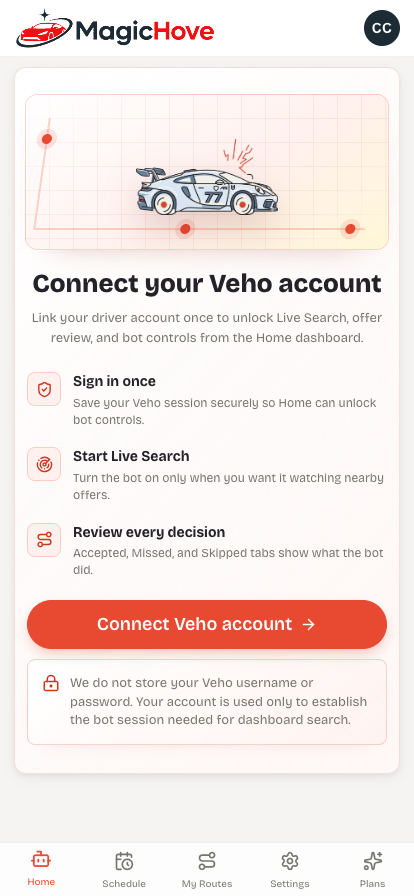
Your Veho username and password are used only to establish that session — they aren't the same as your MagicHove login, and the app is explicit that it doesn't store them.
Step 2 — Build your Bot Search rules
This is the part worth taking slowly, because these rules are what the bot enforces on every single offer, all day. Six fields, all optional except pay:
- Refresh (sec) — how often the bot re-checks the feed. 60 seconds is a reasonable default for most markets.
- Pay type — total pay or pay rate ($/hr). Rate is usually the better filter, since it accounts for how long a route actually takes.
- Min rate ($/hr) — your floor. See our guide to picking this number if you're not sure where to start.
- Min / max duration (hr) — keeps you out of routes that are too short to be worth driving to, or too long to fit your day.
- Max distance (m) and max stops — leave these blank ("no limit") until you notice a pattern of routes you don't want, then tighten them.
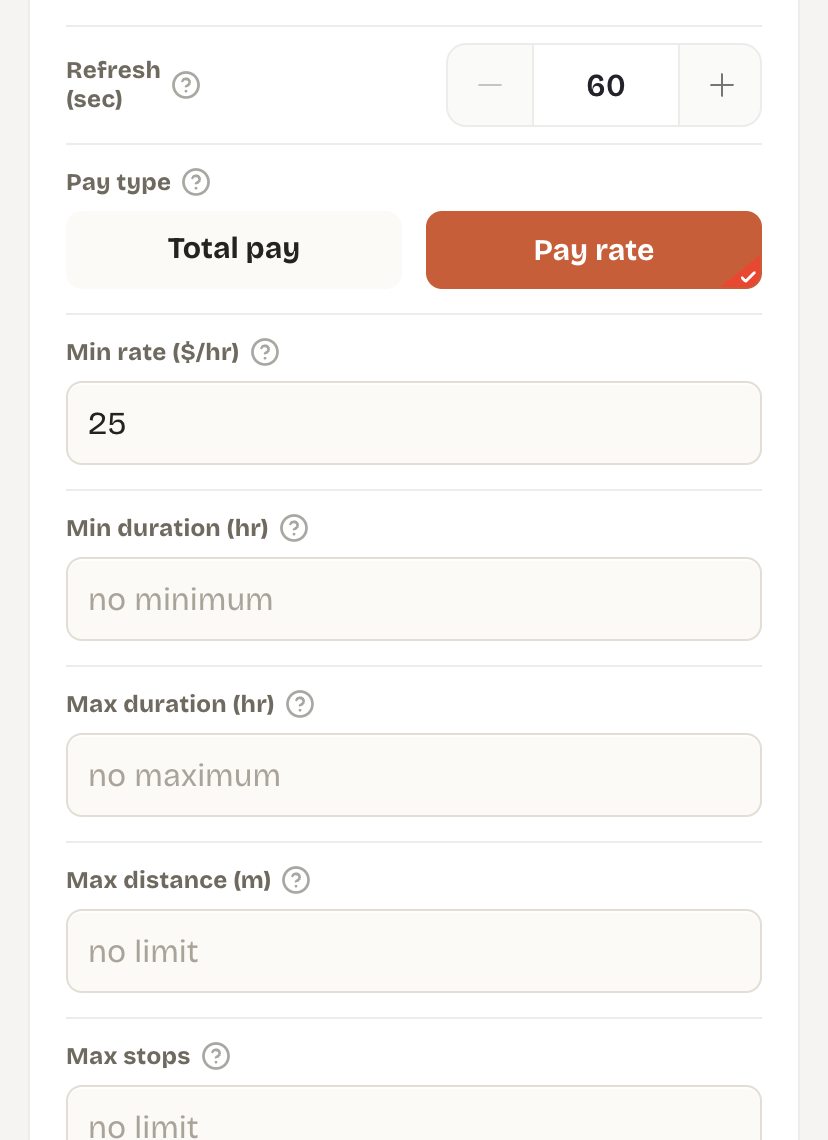
Start looser than you think you need to. A rule set that's too tight just means a quiet feed and no offers claimed — you'll get a much clearer sense of the right numbers once you've seen a week of real offers come through.
Step 3 — Choose how you get notified
Every claimed offer needs to reach you somewhere, since the bot runs in the cloud whether or not your phone is nearby. MagicHove supports Telegram, email, Discord, and in-app notifications — pick whichever one you actually check first thing in the morning. Most drivers use Telegram for the instant ping and email as a backup record.
Step 4 — Turn on Live Search
Once your rules are set and a notification channel is picked, flip the switch on Home. From here the bot polls your feed continuously and claims anything that clears your bar — you'll see it land in Accepted, with everything else sorted into Missed or Skipped so you can review the day later.

What to check after your first day
Give it a full shift, then look at the Accepted, Missed, and Skipped tabs together. If you're seeing mostly Missed, your reaction window isn't the bottleneck anymore — the market is that competitive, and there's not much more to tune. If you're seeing a lot of Skipped near your pay floor, loosen it slightly. See our breakdown of missed vs. skipped for how to read that split.
Ready to set it up?
The whole flow above takes about five minutes. 7-day free trial, full feature access, no card required.